[Unfinished] Turning Steamdeck into a Japanese immerison machine by dual booting Windows

![[Unfinished] Turning Steamdeck into a Japanese immerison machine by dual booting Windows](https://images.unsplash.com/photo-1777432033552-5b34be22ae46?crop=entropy&cs=tinysrgb&fit=max&fm=jpg&ixid=M3wxMTc3M3wwfDF8YWxsfDJ8fHx8fHx8fDE3NzgyNzA1NzN8&ixlib=rb-4.1.0&q=80&w=2000)
The dream of being able to immerse in Japanese games using all the tools you love (GSM, Luna, JL) on a handheld device has simply not been possible.
Until now.
This blog post will show you, reader who already has an immersion setup on Windows, how to do the exact same thing on the Steamdeck.
But on Steamdeck.
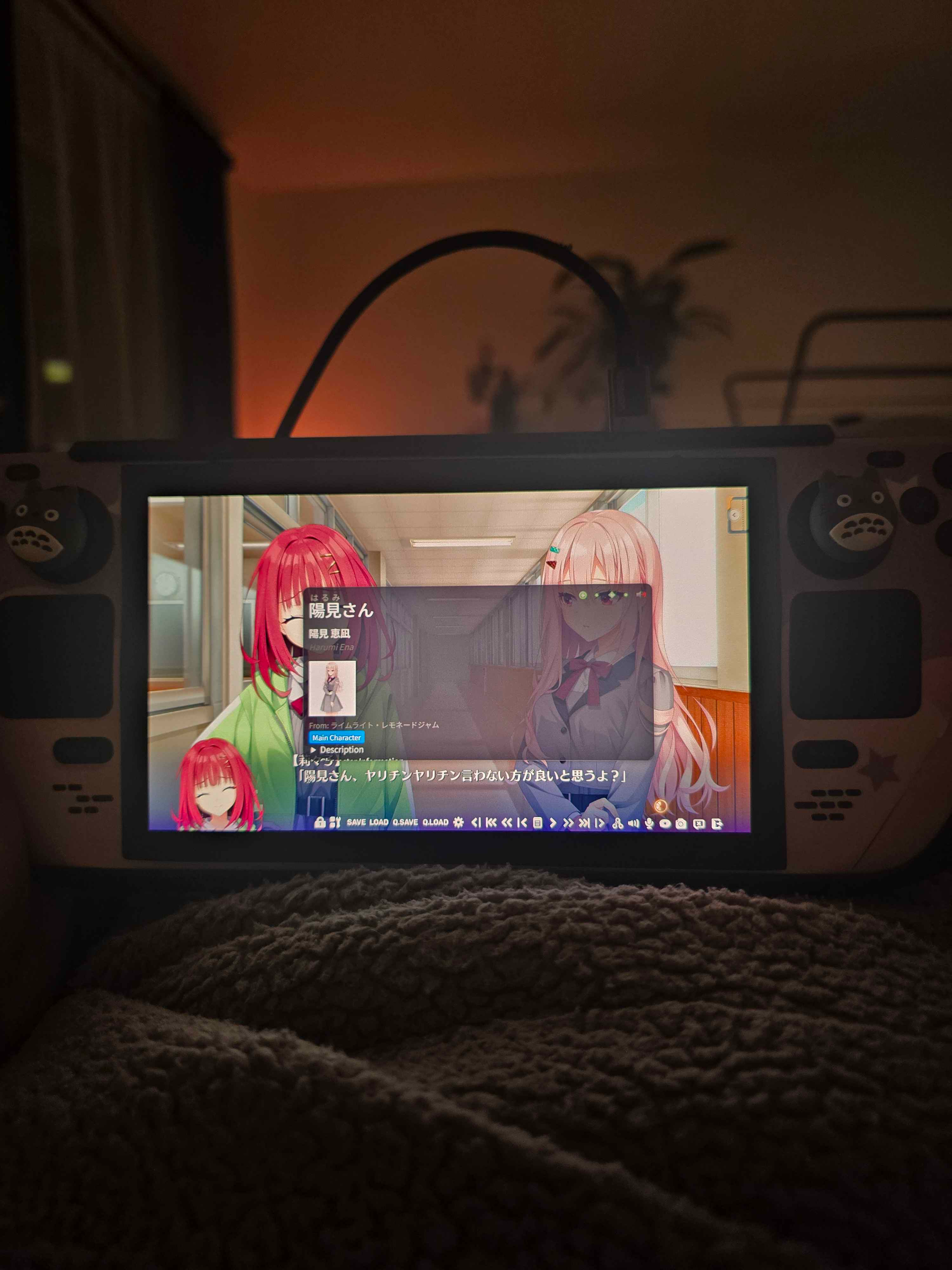
We're going to do this by dual-booting Windows and SteamOS on the Steamdeck.
But firstly, why dual-boot and not go full Linux?
- But they are workarounds.
- Pretty much every immersion tool you love is on Windows.
- Combining immersion tools that work on Windows with VNs that only work on Windows, and trying to do that on Linux is neigh on impossible.
So why not go full Windows?
SteamOS is specifically made for the Steamdeck.
I know I do!
If you want to attempt the Linux only way™️, read this:

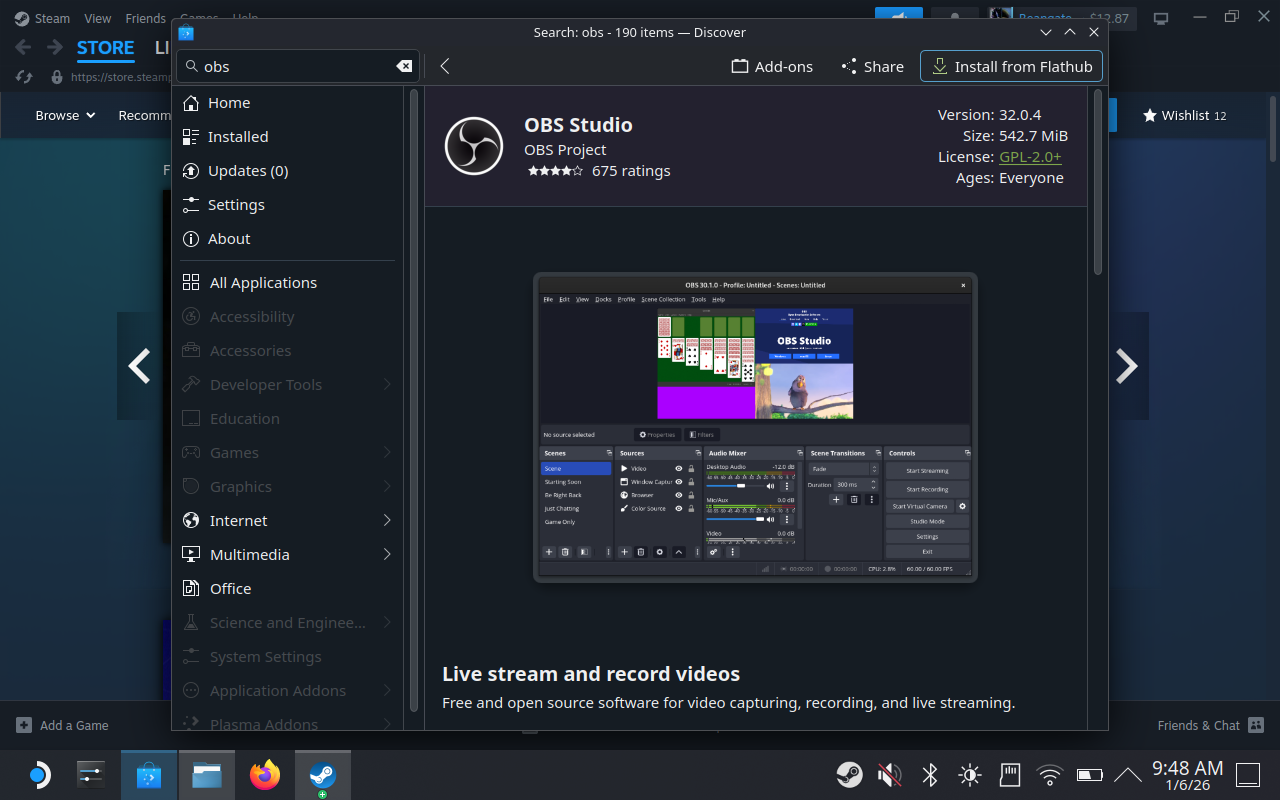
Also I assume you have already done the whole TheMoeWay/Refold/AJATT/Migaku/whatever thing on Windows desktop and you just got a Steamdeck for Christmas.
SteamOS Beta
You should join the SteamOS Beta.
This is because it has BIOS drivers you need to make it work on Windows.
- To update to beta, press the Steam button or open the Steam menu.
- Select the Settings option.
- Go to the System option.
- Select Beta participation.
- Change the System update channel from Stable to Beta.
- Restart and apply the update.
Steamdeck password
You need to set a Steamdeck password to do adminy things.
Follow this:
Installing Windows
If you want a more hand-holdy video, this is good:
- You need this to resize your partition.

- Use KDE partition manager in the repair image.
- I chose 11 IOT as it uses less resources, and 11 has great touch support.
- Put them onto a USB and install them:

Look for "setup information" file type, right click and "Install".
It should boot back into Windows.
Connect to WiFi and install Windows updates.
Now after doing that, restart the steamdeck.
Go back to Windows updates, click on "Advanced Options" and then "Optional updates"
Update everything again.
Now let's configure Clover.
When you dualboot normally you can choose between 3 things:
- Grub
- Refind
- Clover
I believe Clover has controller support whereas the others don't.
Open cmd as admin.
bcdedit -set {globalsettings} highestmode on
reg add "HKEY_LOCAL_MACHINE\System\CurrentControlSet\Control\TimeZoneInformation" /v RealTimeIsUniversal /d 1 /t REG_DWORD /fSets hardware clock to UTC rather than local time.
If you have ever dual booted Linux and Windows you know this is required.
- Linux typically assumes the hardware clock is set to UTC and converts to local time in software
- Windows typically assumes the hardware clock is set to local time directly
- When you switch between OSes, each one "corrects" the clock based on its assumption, causing the time to jump forward or backward
Now shut down your Steamdeck, go into boot manager and boot into SteamOS.
Follow this video to fix it :)
There were some status.txt
In the docs it says:
Use this only if you have Windows installed on microSD / external SSD and if Windows keeps hijacking the bootloader!
Since I don't use that, I don't care.
Optimise Windows
Now Windows should work fine, let's optimise it to work even better.
Your life will be much easier.
 rustdesk
 ChrisTitusTech
Here's what I did:
- Ran all Standard tweaks.
- Additionally disable Background Apps (to speed things up)
- Disable Bing search in start menu
- Show hidden files and extensions
- Enable S3 sleep (this makes the Steamdeck hibernate)
Modern hibernate will let Windows install updates etc
This burns through battery life.
Enable S3 sleep in Chris Titus' tool, and then do this to add hibernate to Steamdeck:
Open Control Panel → Power Options
Click Choose what the power buttons do (left sidebar)
Click Change settings that are currently unavailable
Check Hibernate under "Shutdown settings"
Change "Power button sleeps" to "Power button hibernates"
Click Save changes
Update: Hibernate breaks dualboots, use "Sleep" instead.
Disable All Updates:
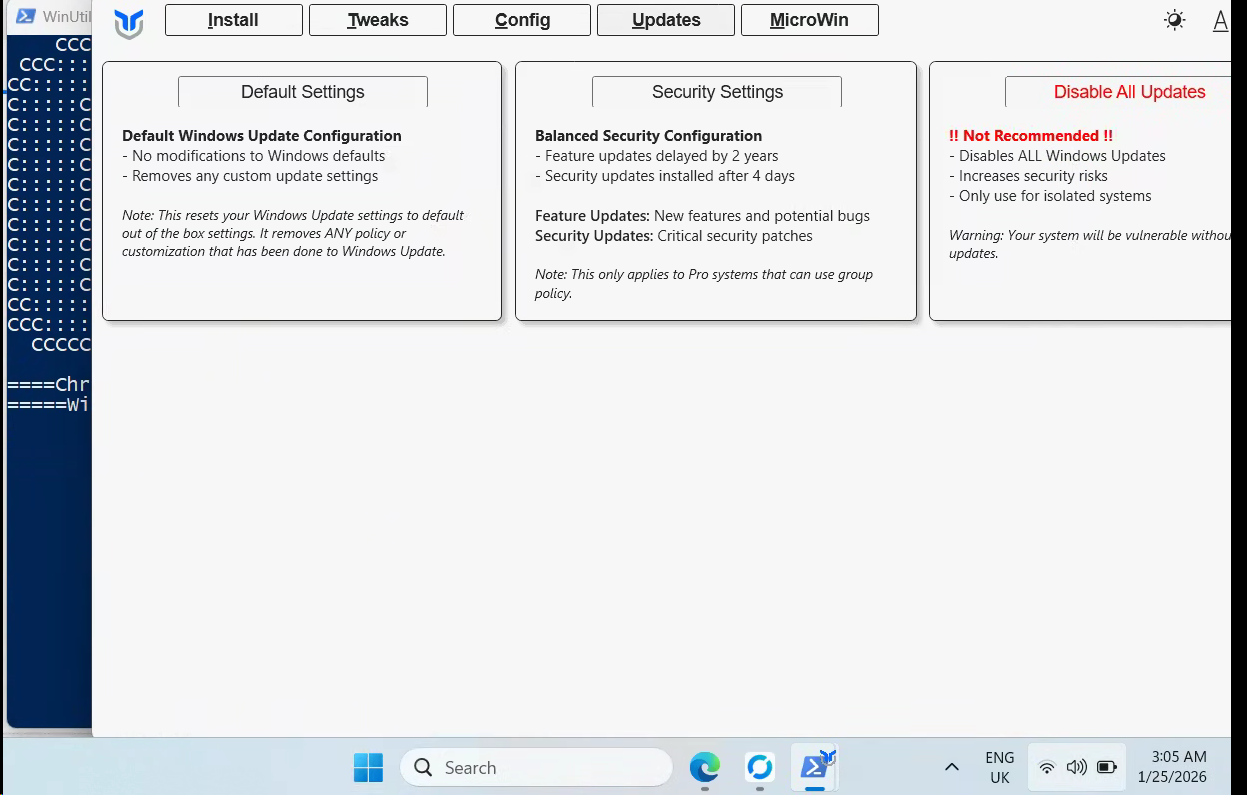
Dual booting often breaks because Windows update breaks it.
I will disable all updates, but Windows Defender will still update its threat lists in the background so it's not all terrible.
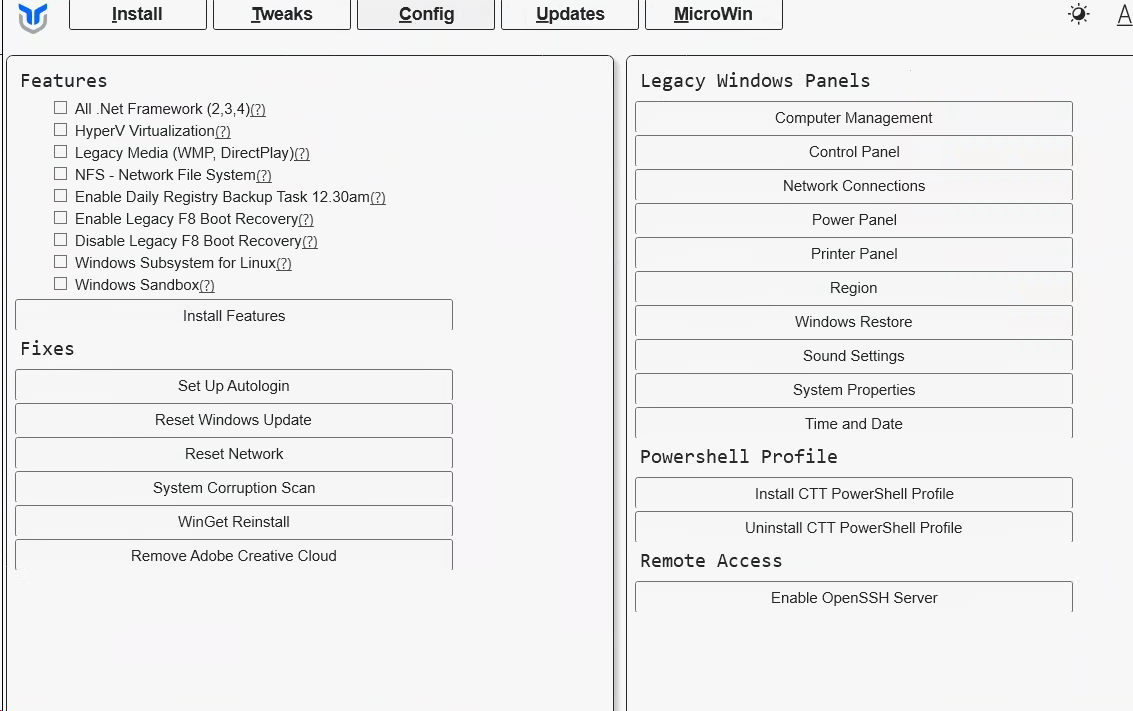
On the Config page do this:
- Set Up Autologin so you can just go straight to gaming.
- All .Net frameworks.
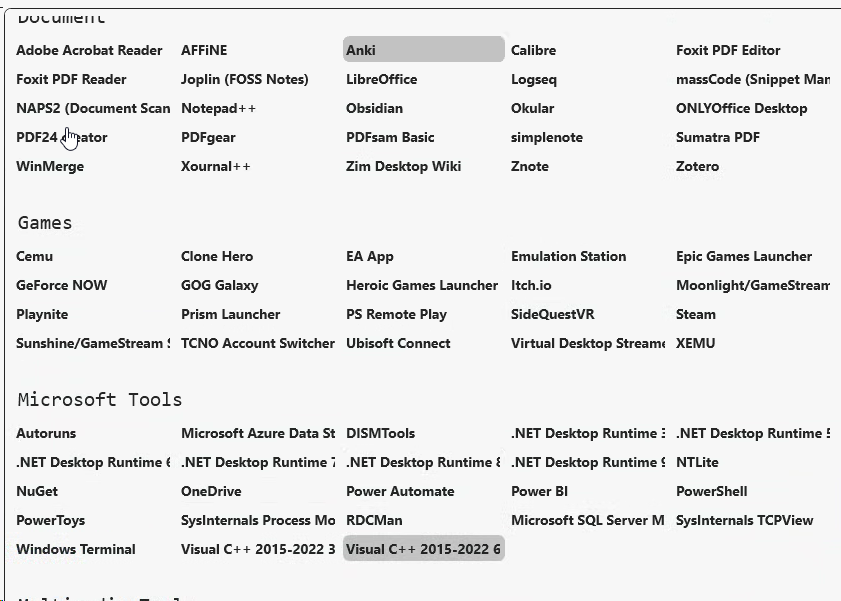
In apps install:
- Anki
- Visual C++ 2015 64bit
- 7zip
Now open Powershell in admin and run this:
Set-WinSystemLocale -SystemLocale ja-JPJapanese games require Japanese locale :)
And do this:
- Open Settings → Time & language → Language & region
- Under "Country or region", select Japan from the dropdown
While you're there, also install Japanese language support.s
Mining Games
Now let's set up our mining stuff.
Anki
Set up Anki and login, sync or whatever.
Go to your Anki addons folder on Desktop (assuming you have it)
C:\Users\Bee\AppData\Roaming\Anki2\addons21
It all works.
GSM
We'll be using GameSentenceMiner.
Go to this and install it:
 bpwhelan
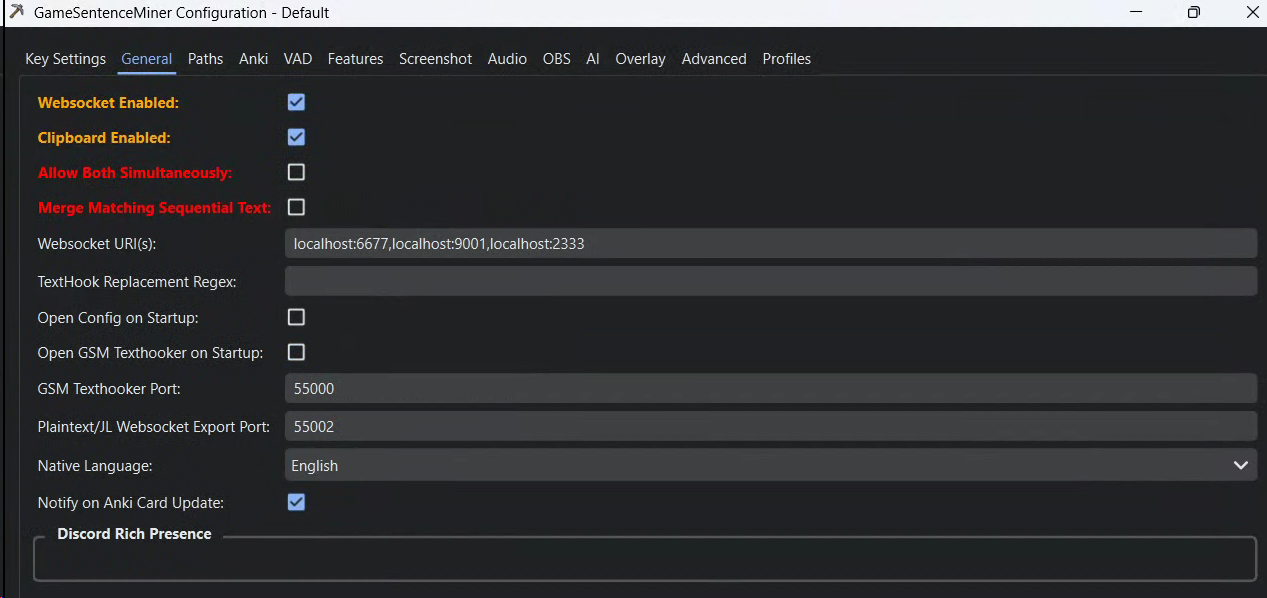
Disable texthooker on startup.
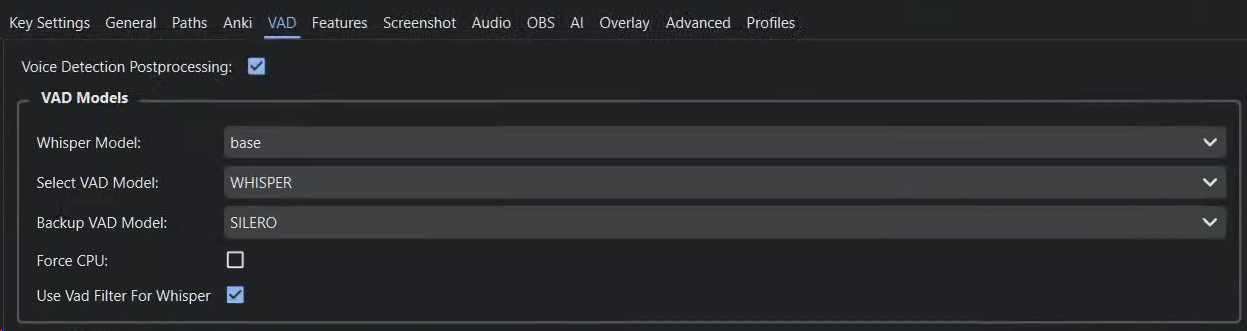
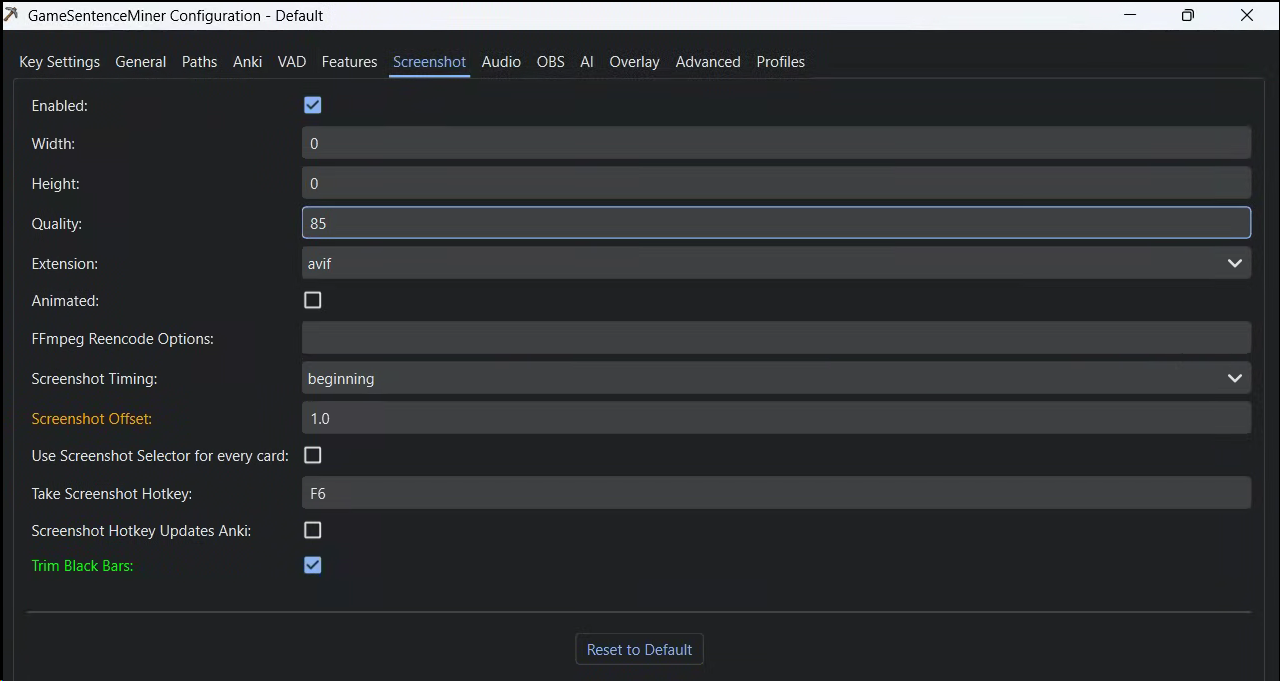
I play visual novels so I don't need them to be animated 😄
But if you play games, activate animation!
I set AI up:
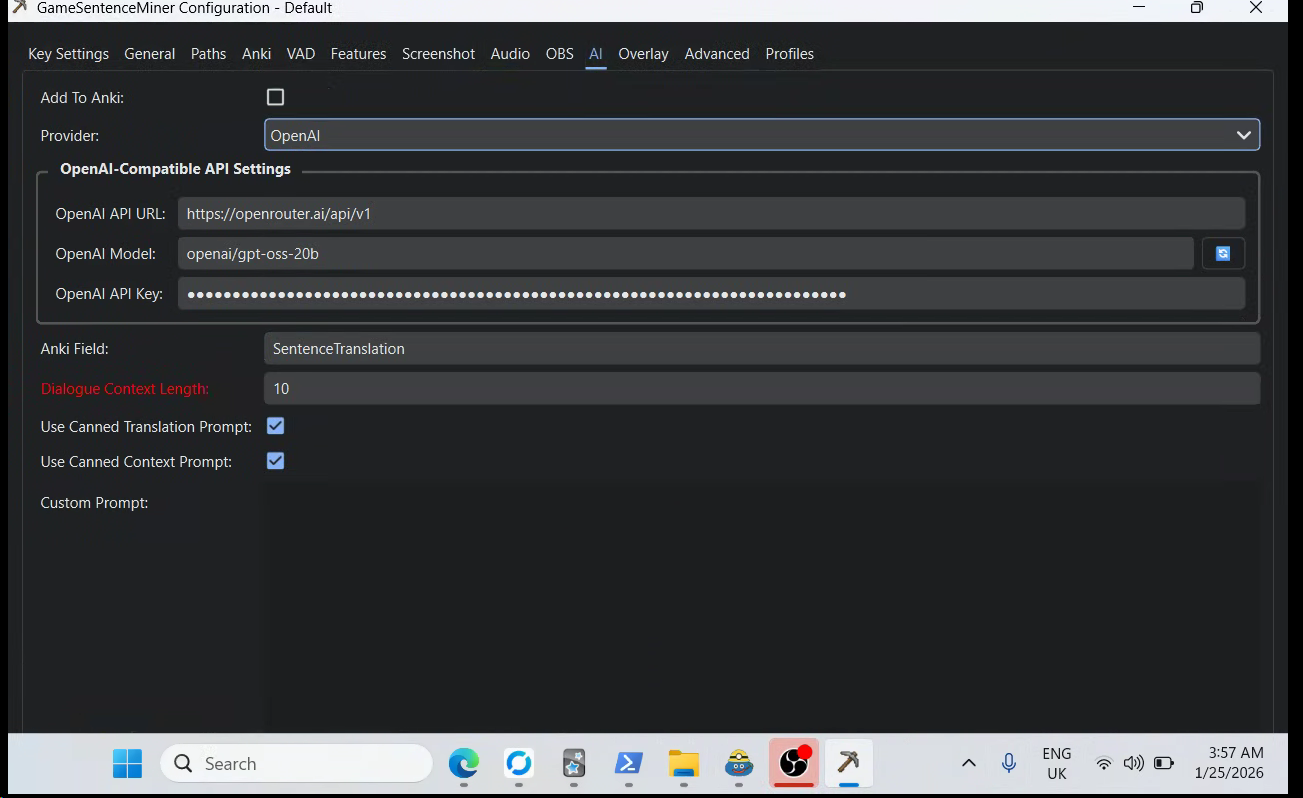
Install Ollama, open it, select TranslateGemma:
https://ollama.com/
4b takes around 5 seconds to run, 12b takes 30 seconds but lags a lot.
In GSM AI set it up to use Ollama and then TranslateGemma.
Then set MeikiOCR in Overlay:
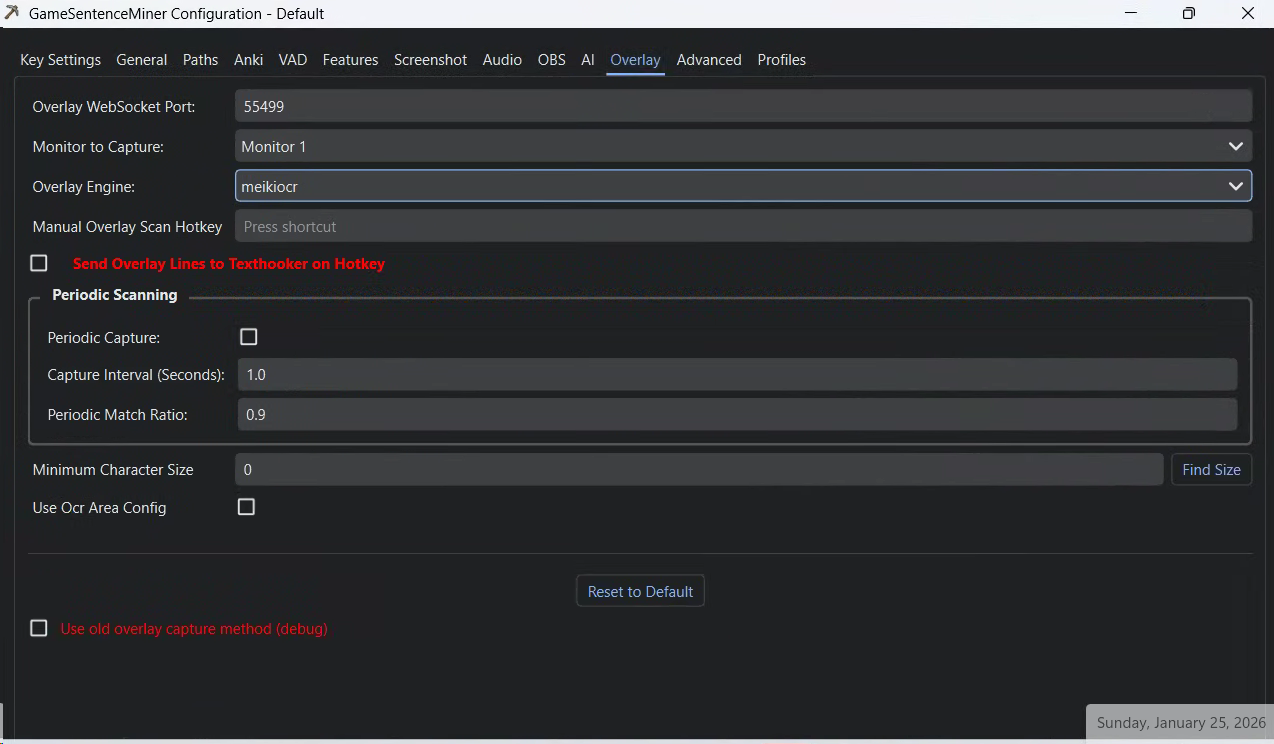
In Advanced:
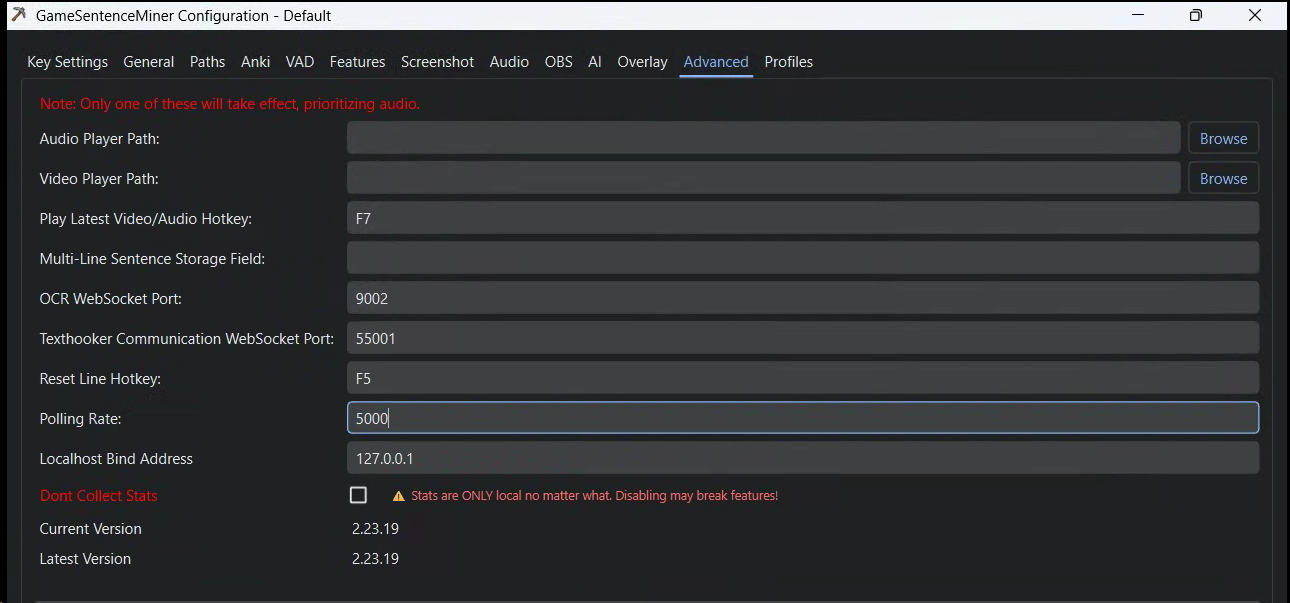
Close GSM and reopen it, my OBS was not synced properly until I did this the first time.
In OBS go to settings, output and then set these:
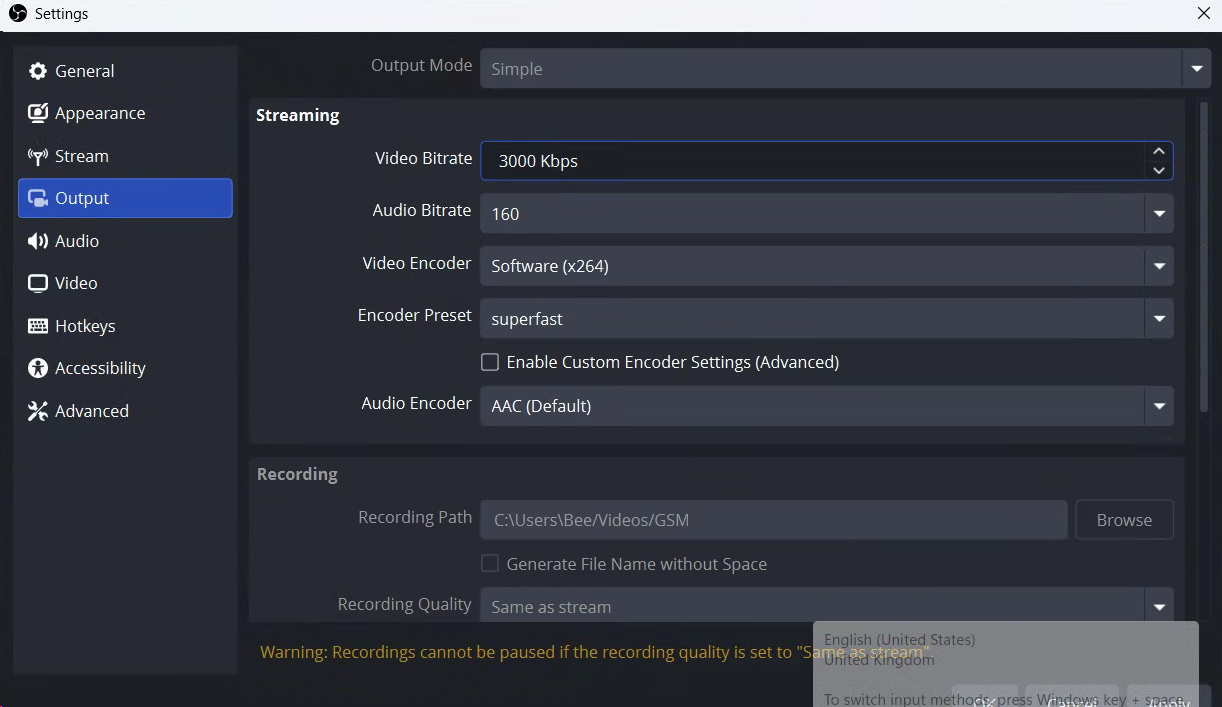
Now in Video tab:
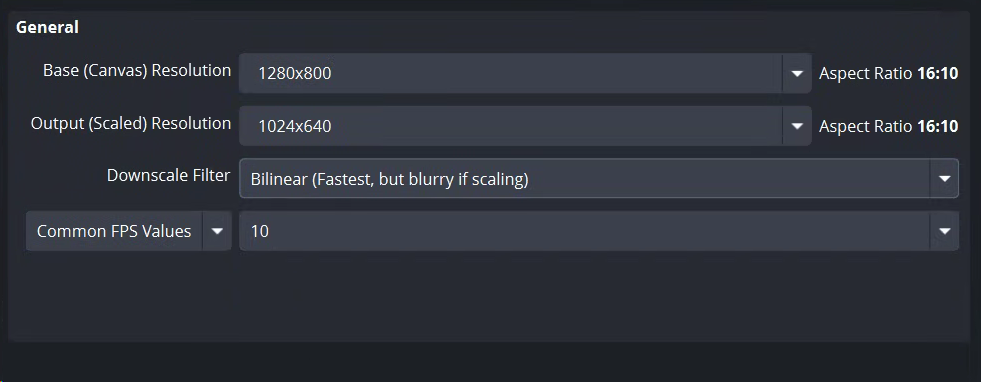
Basically all these settings say:
- I am playing a visual novel that does not move very fast, give me much lower settings to preserve battery life etc.
Finally in GSM enable "Start Overlay on Startup":
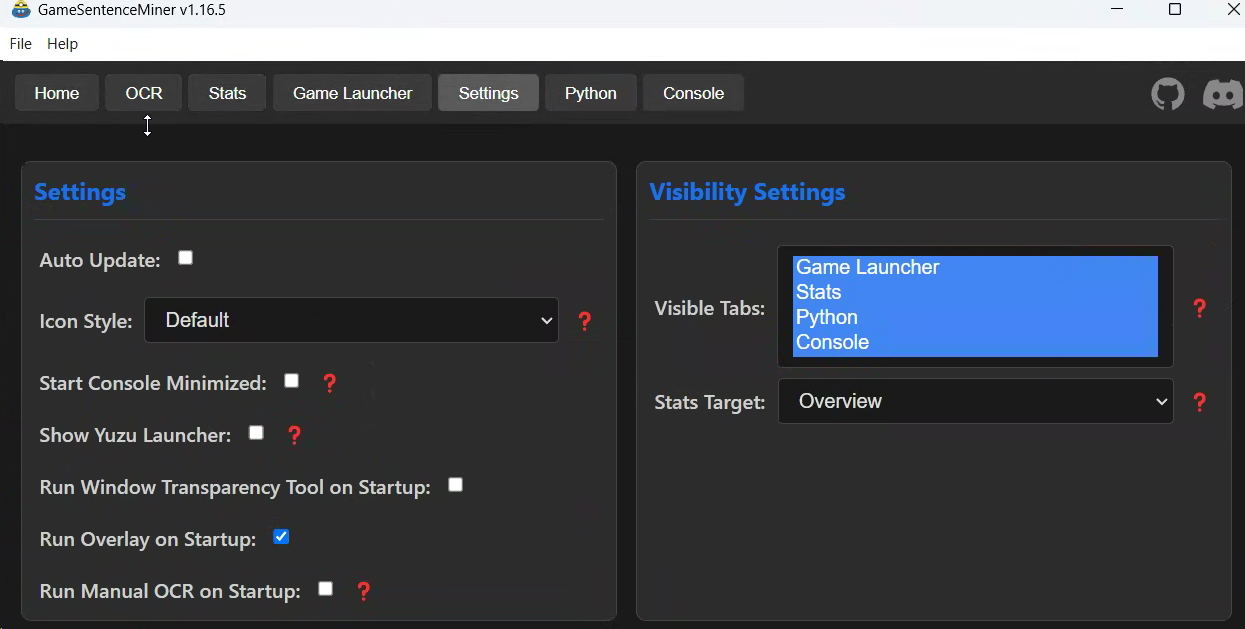
Open GSM Overlay and set Yomitan up, just export your settings from your desktop and move them over.
To save power I just run 4 dicts:
Jitendex (definitions)
Kanjidic
Jiten freq
GSM Character Dict (talked about next).
I also tell Yomitan to only show definitions from max 1 dictionary. This is because Yomitan loads every dict before letting you do anything, which can take some time and power to do
Pro GSM tip:
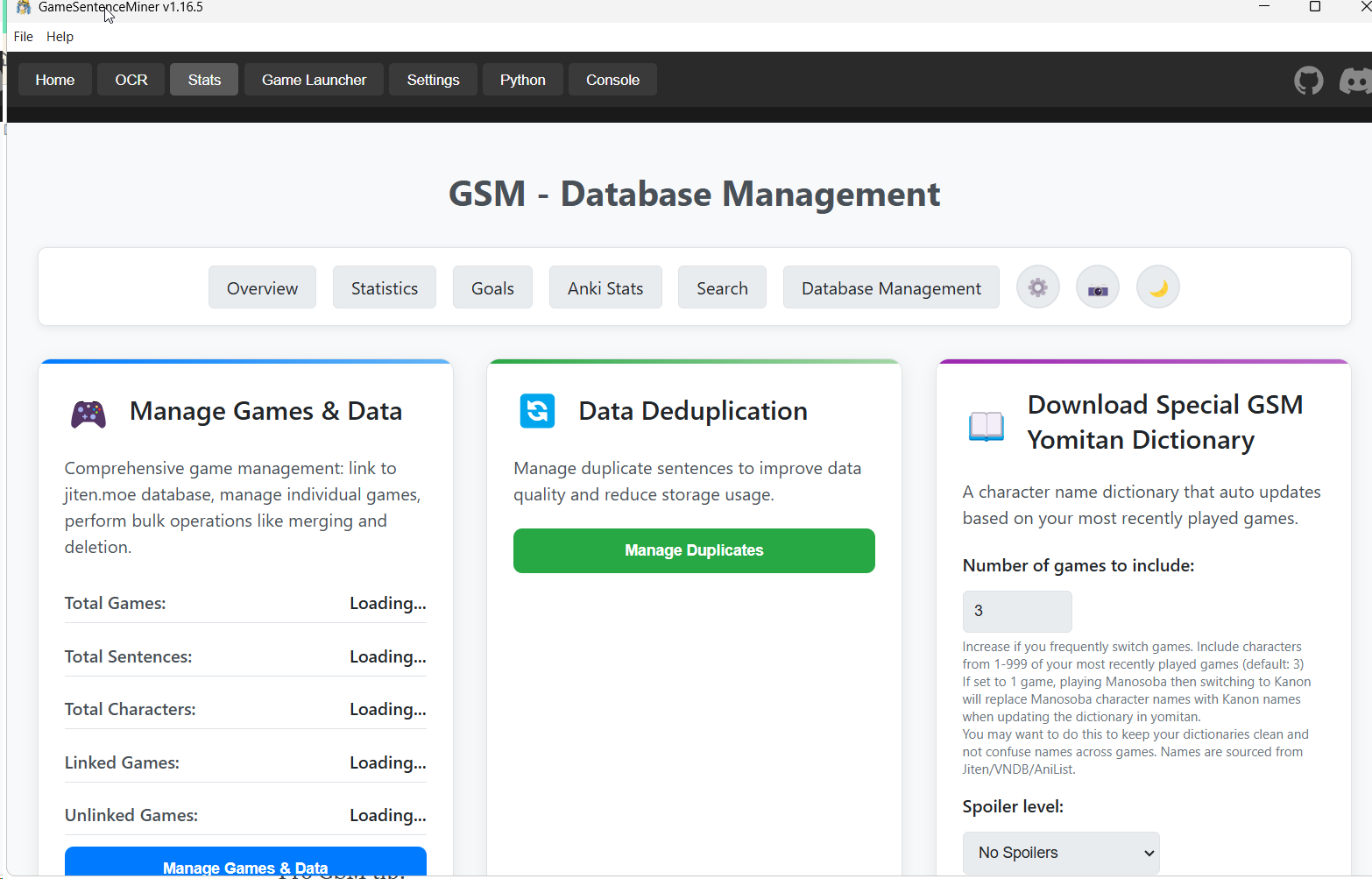
Go to settings -> Database Management and download the special Yomitan dictionary for character information in your games!
While you're here, set up Jiten reader. Use this for Custom Word CSS to make it look normal. The default CSS is horrific to look at.
.jiten-word.new { color: inherit !important; }
.jiten-word.blacklisted { color: inherit !important; }
.jiten-word.mature { color: inherit !important; }
.jiten-word.due { color: inherit !important; }
.jiten-word.young { color: inherit !important;}
Also in settings for Websocket remove all Websockets apart from 2333.

2333 will be used by Lunahook, this saves some cpu cycles as GSM regularly checks to see if those sockets are open.
GSM keyboard shortcuts in overlay todo
Steamdeck controls
Now install this:
 ayufan
This lets you control Steamdeck specific things like fans / gpu usage etc.
Lunatranslate
Install this:
 HIllya51
Turn off Google translate.
Put it into Windows defender allow list so it doesn't break.
Turn on networking.
Just make sure the webhooks in GSM hook up to it.
Random tools
I installed Copyparty to let me copy and paste games from my desktop to my SD:
 9001
9001
It's like FTP but:
- You run the .exe
- It says "enter this IP in your browser"
- You get automatic retries, able to make folders etc.
A lot less finicky for me.


Cause GSM records the game itself and not the window (by default), your screenshots won't be yellow.
Windows nightlight has a max limit to it, F.lux does not. You can go super red.
 Playnite
Use this to instantly load your gaming library on startup. Lunatranslator and GSM should auto switch to it.
Games
Steam games do not work :/